Click Account in the sidebar to open your account settings. The page has two tabs: Profile, where you edit what clients see about you, and Plan & Billing, where you manage your subscription.
Profile tab
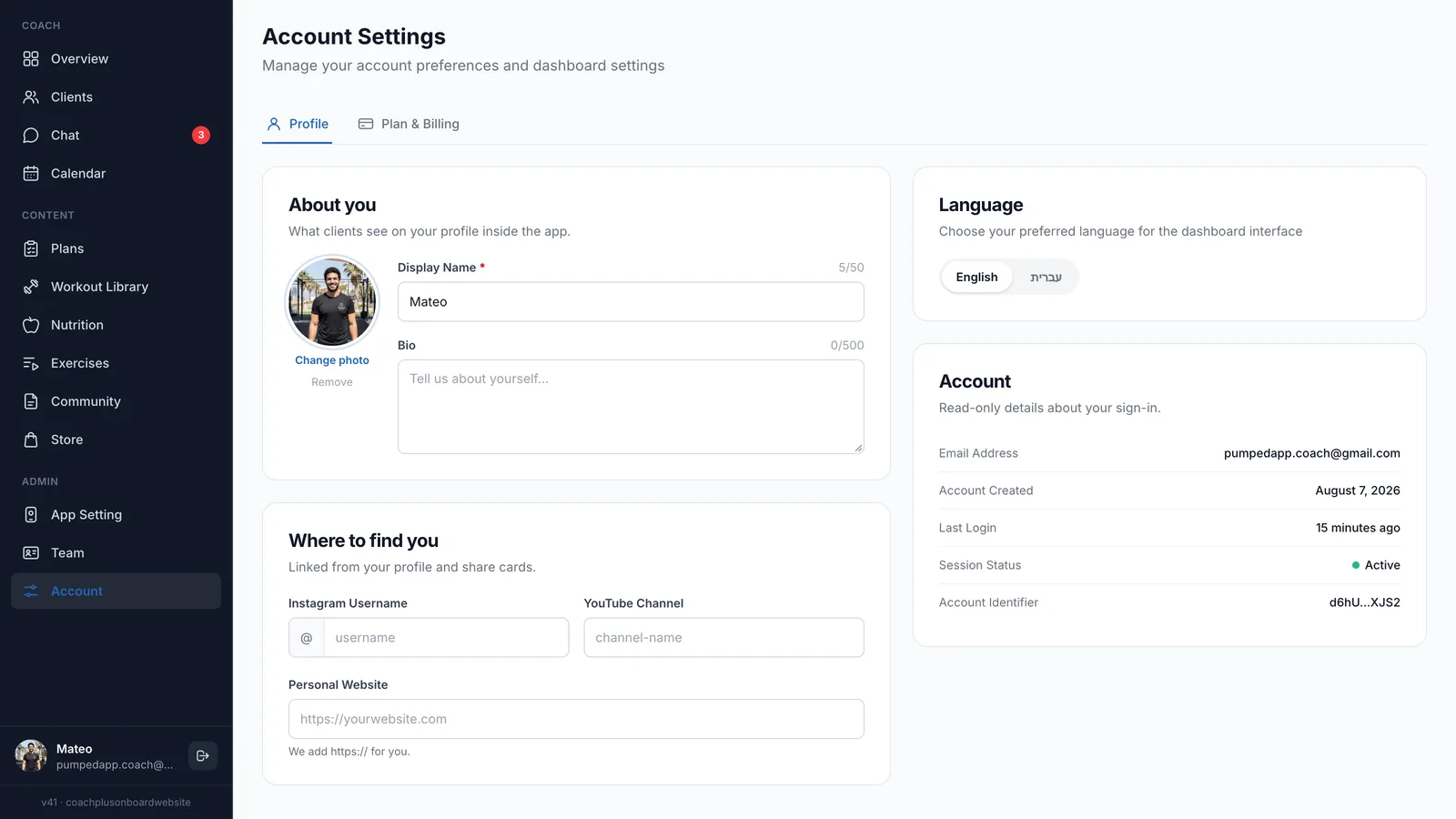
About you
This is what clients see on your profile inside the app.
- Display Name (required) — up to 50 characters. Letters, numbers, spaces, hyphens, underscores and periods only.
- Bio — a few lines about you, up to 500 characters.
A counter above each field shows how many characters you've used.
Your photo
Your photo sits next to your name. If you haven't uploaded one, it shows your Google account photo (or the first letter of your name).
- Click the photo, or Upload Photo below it, and choose an image up to 2MB.
- The photo uploads and saves right away. You don't need to click Save.
- Once you've uploaded your own photo, the link changes to Change photo, and a Remove link appears.
Where to find you
These links appear on your profile and on share cards.
- Instagram Username — your username only, without the @. Letters, numbers, periods and underscores.
- YouTube Channel — your channel name. Letters, numbers, hyphens and underscores.
- Personal Website — your site's address. You can leave out https:// and we'll add it for you.
Saving your changes
When you edit a field, "Unsaved changes" appears at the top of the page with two buttons:
- Save — saves your changes. A message confirms when your profile is updated.
- Reset — throws away your changes and puts back what was saved.
If a field has an error, it shows in red under the field, and Save stays off until you fix it.
Language
Choose English or עברית. The dashboard switches right away. This only changes the language of your dashboard, on this browser. It doesn't change the language of your app.
Info
Account
This card shows read-only details about your sign-in: Email Address, Account Created, Last Login, Session Status and a shortened Account Identifier. You can't edit them here.
Plan & Billing tab
Only team members with the Admin role see this tab. Everyone else sees only the Profile tab.
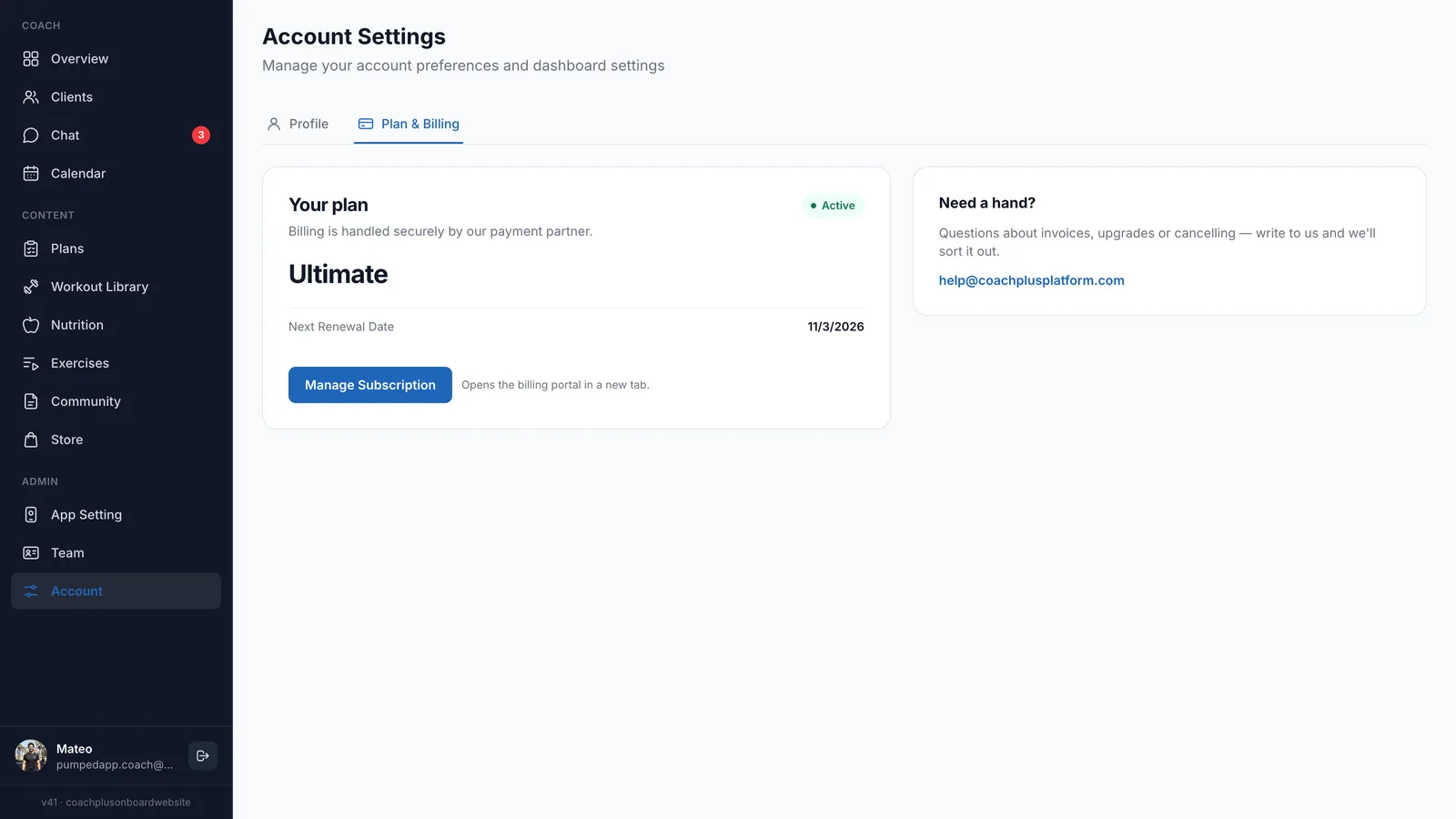
The Your plan card shows:
- Your plan name, or "No plan yet" if you don't have one.
- A status label: Active, Expired or No plan. When 30 days or less are left, the label changes to warn you.
- Your subscription dates, such as the expiration date and how many days are left.
- A button to manage your subscription.
The subscription button
- Subscribe Now — shown if you don't have a subscription yet. Opens checkout in a new tab.
- Manage Subscription — opens the billing portal in a new tab.
- Managed via App Store — shown if you subscribed through Apple. The button can't be clicked. Change your plan on your iPhone in Settings › Subscriptions.
After you subscribe
When you finish checkout, you land on a "Subscription Successful!" page. Your new features can take up to a minute to turn on. Click Go to Settings to go back to your Account page.
When your subscription is ending
- In the last 30 days, a yellow "Subscription Expiring Soon" banner appears at the top of the Account page, with the number of days left.
- If your subscription expires, a red "Subscription Expired" banner shows the date it ended. Every dashboard page sends you back to Account until your subscription is active again.
Tip
Frequently Asked Questions
Why can't I see Plan & Billing?
Only team members with the Admin role can see it. Ask an Admin on your team, or contact support.
I changed the language but my app is still in English.
The Language setting on this page only changes your dashboard. It doesn't change your clients' app.
Need Help?
Questions about invoices, upgrades or cancelling? The Plan & Billing tab has a Need a hand? card with our email, or write to help@coachplusplatform.com.