If you sell workout plans, the Store page shows how your sales are doing, lists your orders, and lets you set your prices.
Opening the Store page
Click Store in the Content section of the sidebar. The page is called Store Management and has three tabs:
- Analytics — your sales numbers and charts. This tab opens first.
- Orders — a list of your recent orders
- Pricing — the prices for the plans you sell
On a phone or small screen, the tabs show only their icons.
Info
Analytics tab
The Store Analytics view is built from your completed orders. Orders that are still pending, failed, or cancelled aren't counted. Click Refresh next to the title to load the latest data. If you haven't had any orders yet, you'll see No analytics data yet.
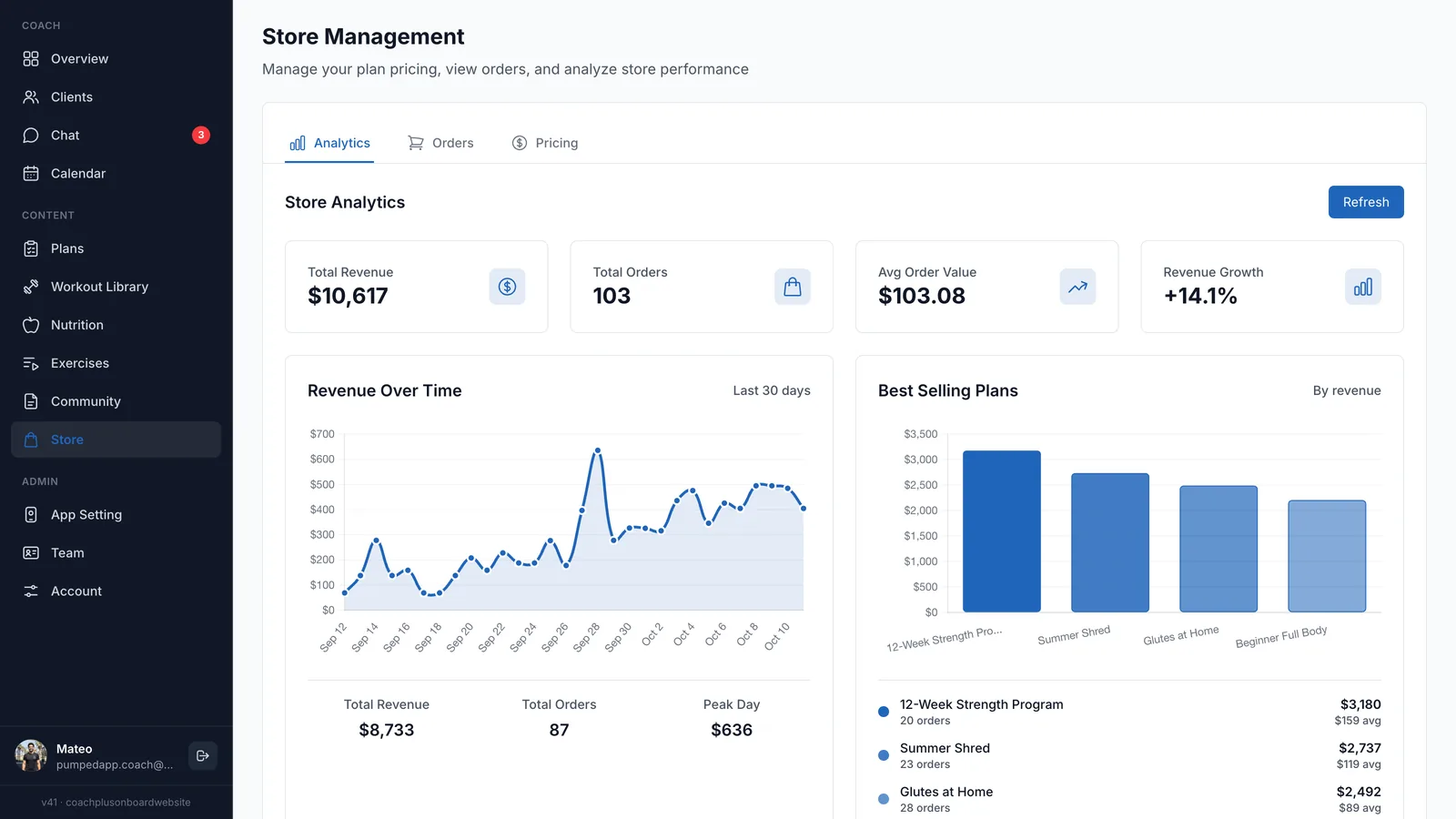
Key numbers
- Total Revenue — the total amount from completed orders
- Total Orders — how many completed orders you have
- Avg Order Value — total revenue divided by the number of orders
- Revenue Growth — revenue from the last 7 days compared with the 7 days before
Revenue Over Time
A line chart of your revenue for each day of the last 30 days. Hover over a day to see that day's revenue and number of orders. Under the chart you'll find the 30-day Total Revenue, Total Orders, and Peak Day (your best day's revenue).
Best Selling Plans
A bar chart of your top 5 plans, ranked by revenue. Hover over a bar to see the plan's revenue, number of orders, and average price. Your top 3 plans are also listed under the chart.
Growth Insights
Two quick comparisons of the last 7 days against the week before: Revenue Trend (7 days) and Order Trend (7 days). Growth shows in green and a drop shows in red.
Tip
Orders tab
Recent Orders lists your 50 most recent orders, newest first. Click Refresh to check for new ones. Each row shows:
- Order ID — the order's reference number
- Plan — the plan that was bought
- Customer — the buyer's email
- Amount — the price paid, with its currency
- Status — green for completed, yellow for created or pending, red for failed or cancelled
- Date — when the order was placed
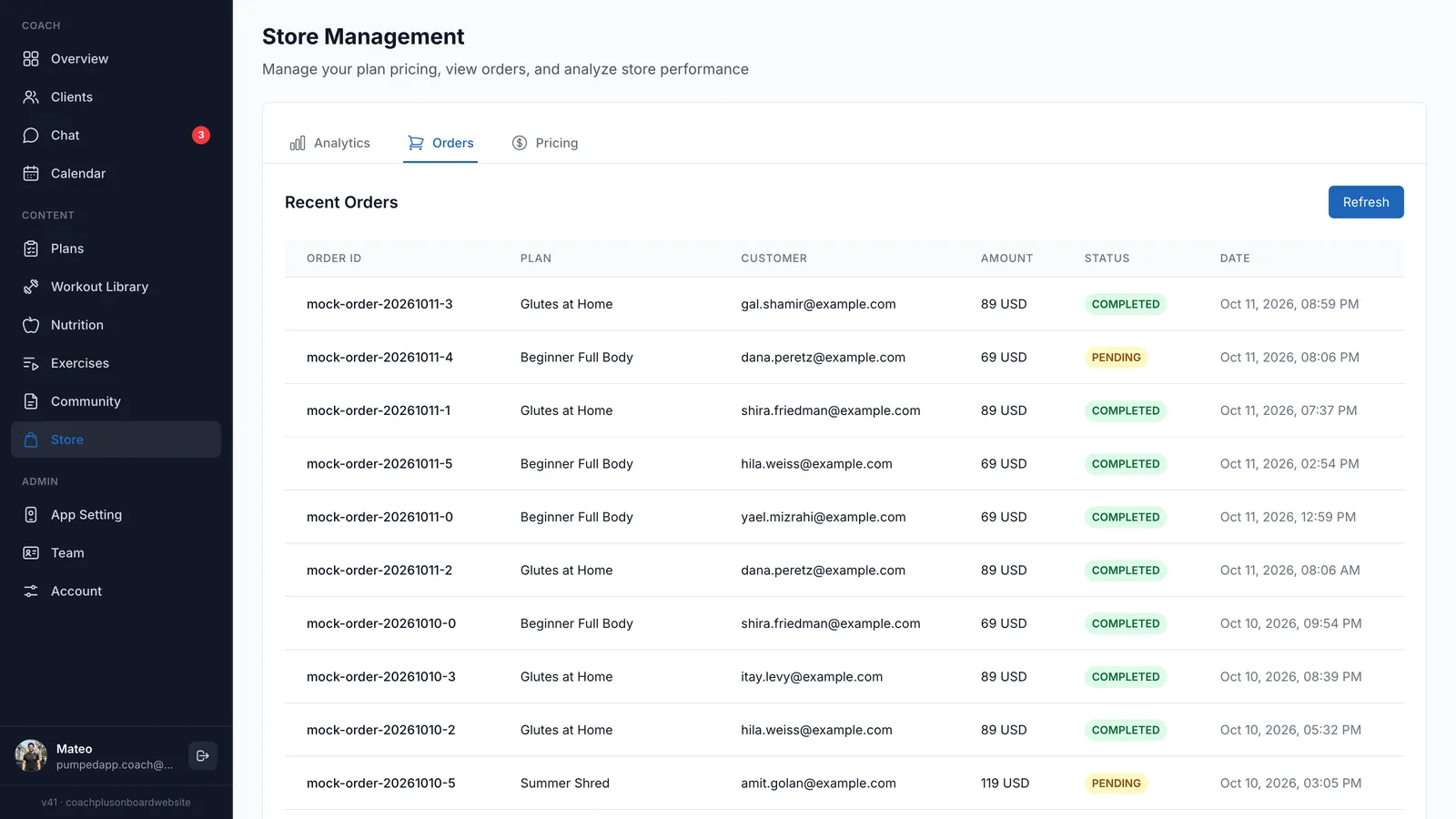
If nobody has bought a plan yet, you'll see No orders found.
Info
Pricing tab
In Plan Pricing you set four price levels: Bronze Plan, Silver Plan, Gold Plan, and Platinum Plan.
- Type a price for each level, for example 29.99.
- Click Save Pricing.
- You'll see Pricing updated successfully!
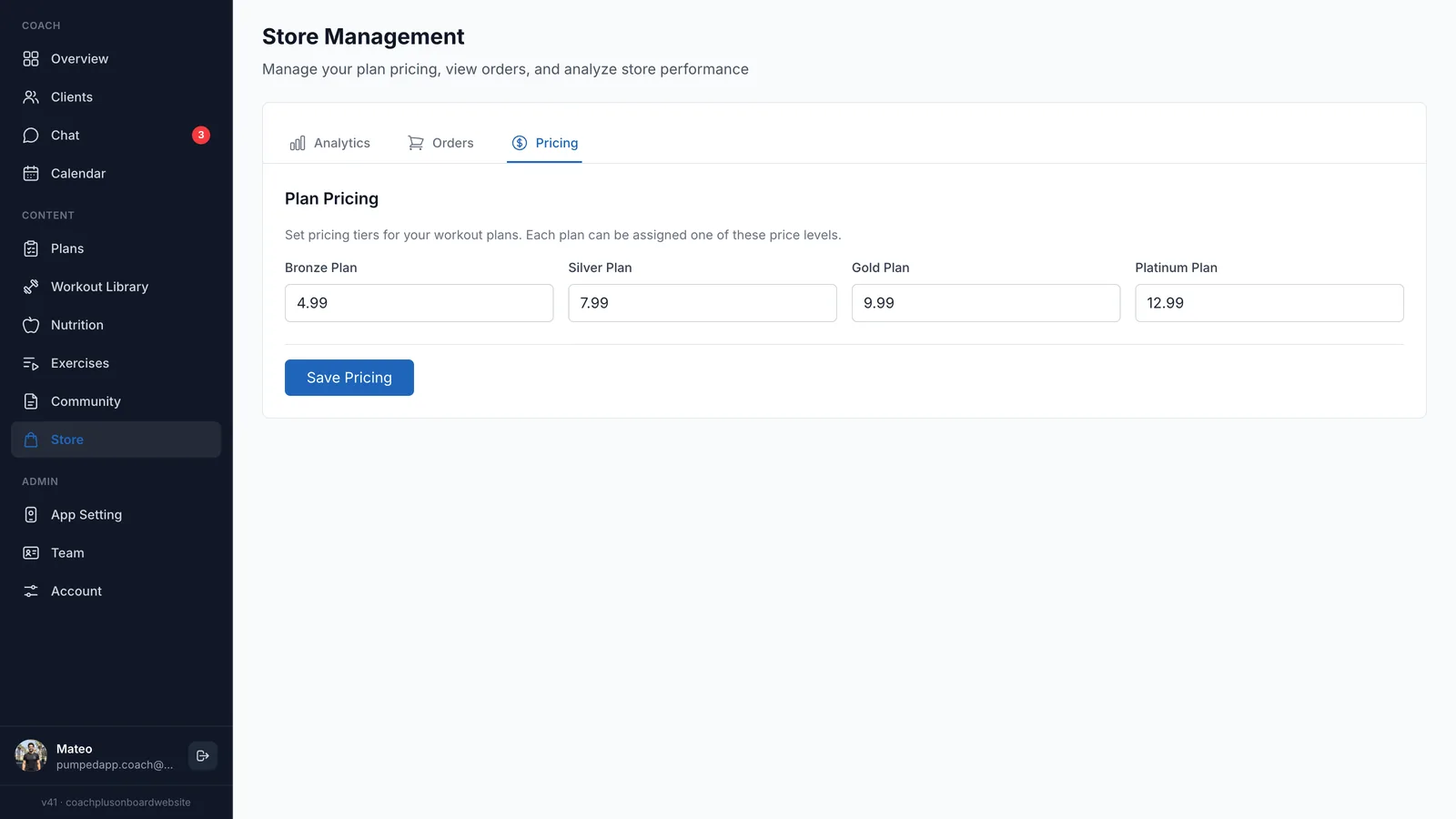
Prices can't be negative. If you get a No pricing config found error when saving, contact support.
Listing a plan for sale
To show a plan in your store, open it in Plans, click Edit details, and turn on Public Plan. Public plans are visible to all clients, who can view and buy them. Plans that are assigned to a specific client can't be made public.
What's Next?
Related help:
- Creating Workout Plans — Build the plans you want to sell
- Understanding Features & Tiers — See what's included in your plan