
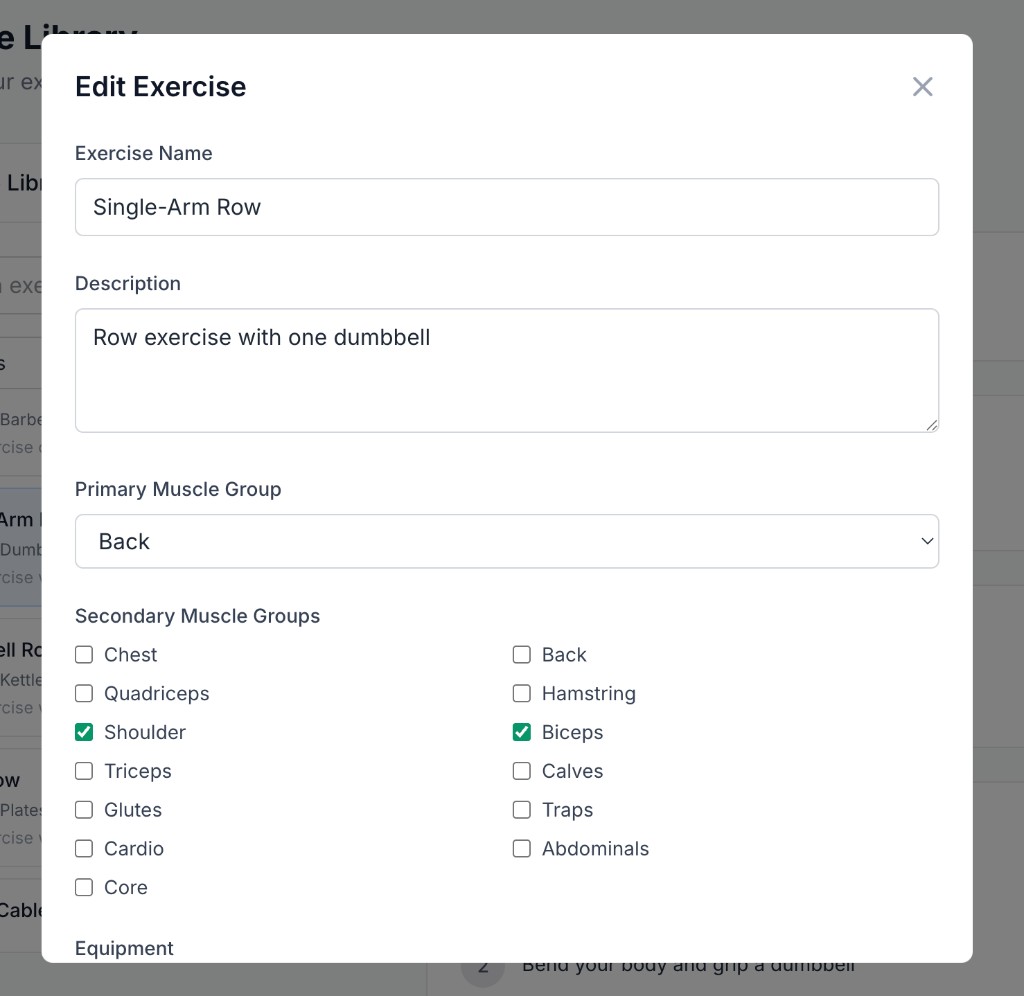
From Exercise Library, Create Exercise opens an empty form; Edit Exercise (on a selected exercise) opens the same layout with that exercise's data. The modal is scrollable on smaller screens.
What you can edit
The form maps to what the dashboard saves to your exercise library. In the current web app you can set:
Exercise Name
Single-line text. Required.
Description
Multi-line text (textarea). Optional but useful for list previews and the detail panel.
Primary Muscle Group
Single-select dropdown. Options in the UI: Chest, Back, Shoulders, Biceps, Triceps, Quadriceps, Hamstring, Glutes, Calves, Core, Abdominals, Cardio. Required.
Secondary Muscle Groups
Checkboxes in a two-column grid—any combination. Available groups match the muscle enum used in the app: Chest, Back, Quadriceps, Hamstring, Shoulder, Biceps, Triceps, Calves, Glutes, Traps, Cardio, Abdominals, Core (None is excluded from the list).
Equipment
Single-select: None, Barbell, Dumbbell, Kettlebell, Machine, Plates, Cables. Required.
Exercise Type
Single-select: Reps & Weight, Time & Distance, Time, Steps & Weight. Required.
Instructions
Numbered steps—each step is one text field. You can remove a step (trash control) or use Add step to append another line. The detail view shows these as numbered instructions.
Video attachment
Only YouTube URLs are supported. Paste a valid watch or youtu.be link; when valid, an embedded preview appears and you can Remove video to clear it. Invalid URLs show a validation message.
Info
Actions
- Cancel — closes the modal without saving.
- Create Exercise / Save Changes — submits the form; the button shows a loading state while saving.