
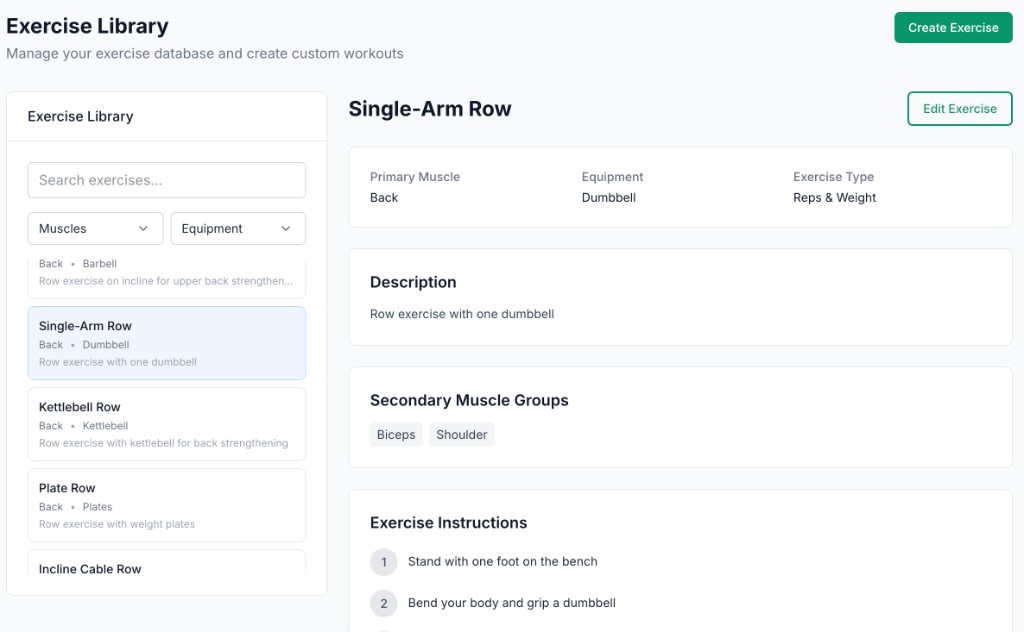
Open Exercises from the sidebar. The page title is Exercise Library, with the subtitle Manage your exercise database and create custom workouts. On desktop, the screen uses two columns: a library panel with search, filters, and the exercise list, and a detail panel for the exercise you select.
Browse and filter
The library panel lists exercises from the shared catalog plus your custom ones. Use the Search exercises… field to find a name quickly. Narrow the list with the Muscles and Equipment dropdowns.
Each row shows the exercise name, a compact line with primary muscle and equipment (e.g. Back • Dumbbell), and a one-line description when available. Click an exercise to select it and load full details.
Exercise details
When an exercise is selected, the detail panel shows its title and an Edit Exercise button (outlined in your brand color). Below that you'll see cards for:
- Primary Muscle, Equipment, and Exercise Type (e.g. Reps & Weight)
- Description, when present
- Secondary Muscle Groups as tags
- Exercise Instructions as numbered steps
- Media — image and/or video when an image URL or video link is attached
If nothing is selected yet, the app prompts you to select an exercise and explains that you can click any row in the library to see its information.
Create Exercise
Click Create Exercise in the page header (uses your coach primary color). A modal opens to add a custom exercise. Typical fields include:
- Exercise name (required)
- Description
- Primary muscle group and secondary muscle groups (checkboxes)
- Equipment
- Exercise type (e.g. Reps & Weight, Time & Distance, Time, Steps & Weight)
- Instructions — one text line per step, with options to add or remove steps
- Video attachment — paste a valid YouTube link to demonstrate the movement
Save with the primary action at the bottom of the modal; cancel closes without saving. See Edit or create an exercise for the full field list and validation rules.
Tip
Edit Exercise
With an exercise selected, use Edit Exercise to open the same form as create—update name, description, muscles, equipment, type, numbered instructions, and YouTube link, then save. It uses the same modal layout as Create Exercise; only the title and primary button label differ.
Using exercises in plans
Exercises you see here are the same pool used when editing workouts and plans. See Creating Workout Plans for adding them to client programs.