Several coaches can work in the same Coach+ dashboard. The Team page shows everyone on your team, their role and when they last signed in.
Opening the Team page
Click Team in the Admin section of the sidebar. If Team isn't part of your Coach+ plan, it doesn't appear in the sidebar at all. See Your Plan & Features to learn more.
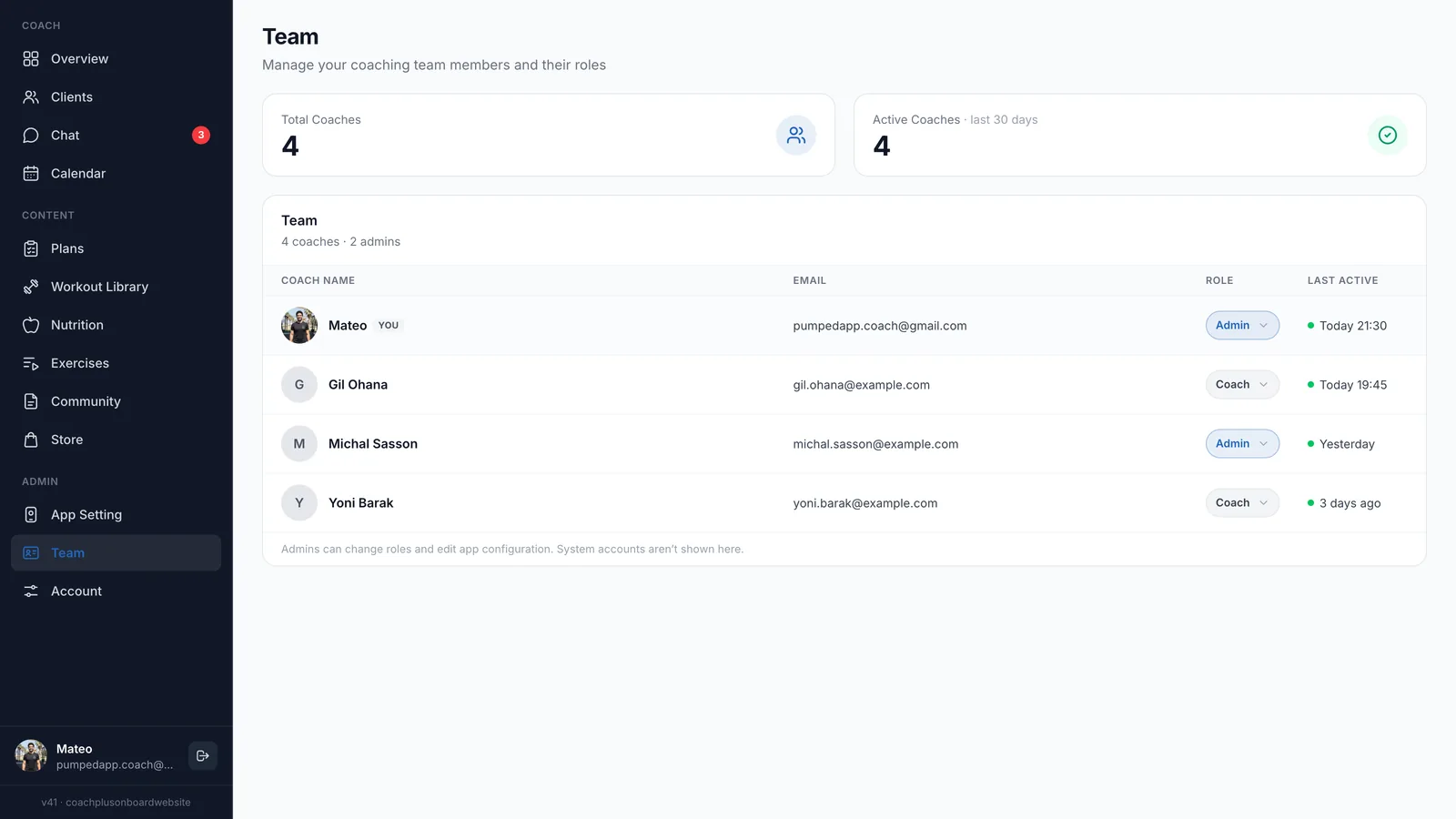
What the Team page shows
At the top are two numbers:
- Total Coaches - everyone on your team.
- Active Coaches · last 30 days - coaches who signed in to the dashboard in the last 30 days.
Below them is the team list, sorted by name. For each coach you'll see:
- Coach Name - their photo and name. Your own row is marked YOU.
- Email - the Google account they sign in with.
- Role - Coach or Admin.
- Last Active - when they last signed in, for example "Today 09:30", "Yesterday" or "3 days ago". A green dot means they were active in the last 30 days.
On a phone, the email and last active time appear under each name.
Adding a coach to your team
There's no invite button. A new coach joins by signing in to your dashboard with your details:
- Give them your Coach ID and your dashboard's Secret Code. This is the same code you use to sign in.
- They open the dashboard sign-in page, enter the Coach ID, then the secret code, and click Continue with Google.
- They fill in their first name, last name, phone number and country, accept the terms and declarations, and click Complete Setup.
That's it. They're in the dashboard right away and appear on the Team page with the Coach role. There's no approval step.
Warning
The person who set up your app gets the Admin role automatically the first time they sign in.
Roles: Coach and Admin
Both roles use the same dashboard: clients, chat, calendar, plans, Workout Library, nutrition, exercises, community and store. Only a few places are for Admins:
- App Setting - Admins only. Coaches who open it see an "Access Restricted" message. Learn more in App Configuration.
- Plan & Billing - this tab under Account only appears for Admins. Coaches see only their own Profile tab.
- Team - everyone can view the team, but only Admins can change roles. Coaches see a View-Only Mode notice at the top of the page.
Features that aren't in your Coach+ plan stay locked for everyone, whatever their role.
Changing a role
Only Admins can do this.
- Go to the Team page.
- In the Role column, open the menu next to the coach and choose Coach or Admin.
The change saves right away, and a message confirms it, for example "Dana is now an admin". Your team can have more than one Admin.
Tip
Frequently Asked Questions
Can I remove a coach from my team?
The Team page doesn't have a remove option. Email help@coachplusplatform.com and tell us which coach to remove.
Why can't I change roles?
You have the Coach role. Ask an Admin on your team to change your role, or contact support.
Why don't I see Team in the sidebar?
Team isn't part of your Coach+ plan. Contact support to add it.
Need Help?
Questions about your team or roles? Email help@coachplusplatform.com.