The Workout Library holds single workouts that aren't part of a plan. You can send one to clients as a challenge, share it with a link, or put it on your studio's weekly schedule.
Workout Library or Plans?
- Plans are full programs with several workout days. You assign a plan to one client from their profile, and they follow it over weeks.
- Workout Library is for one-off workouts. Send the same workout to many clients at once as a challenge, or schedule it as a class on your studio's week.
Library workouts and plan workouts are kept separately. A library workout can't be added to a plan, and a plan workout doesn't show up in the library.
Your whole team shares one library. Every coach on the team sees, edits and schedules the same workouts.
The Workouts tab
Click Workout Library in the sidebar. If studio scheduling is part of your plan, the page opens on the Schedule tab. Click Workouts to see your library. Without studio scheduling there are no tabs, and the page shows your workouts right away.
- All Workouts shows how many workouts you have and how many coaches created them.
- Search workouts… finds workouts by name.
- When more than one coach has created workouts, the list is grouped by coach. Your own group comes first and is marked You. Click a coach's name to collapse or expand their group.
Each card shows the workout name, the number of exercises and up to three muscle groups. Click a card to open the workout.
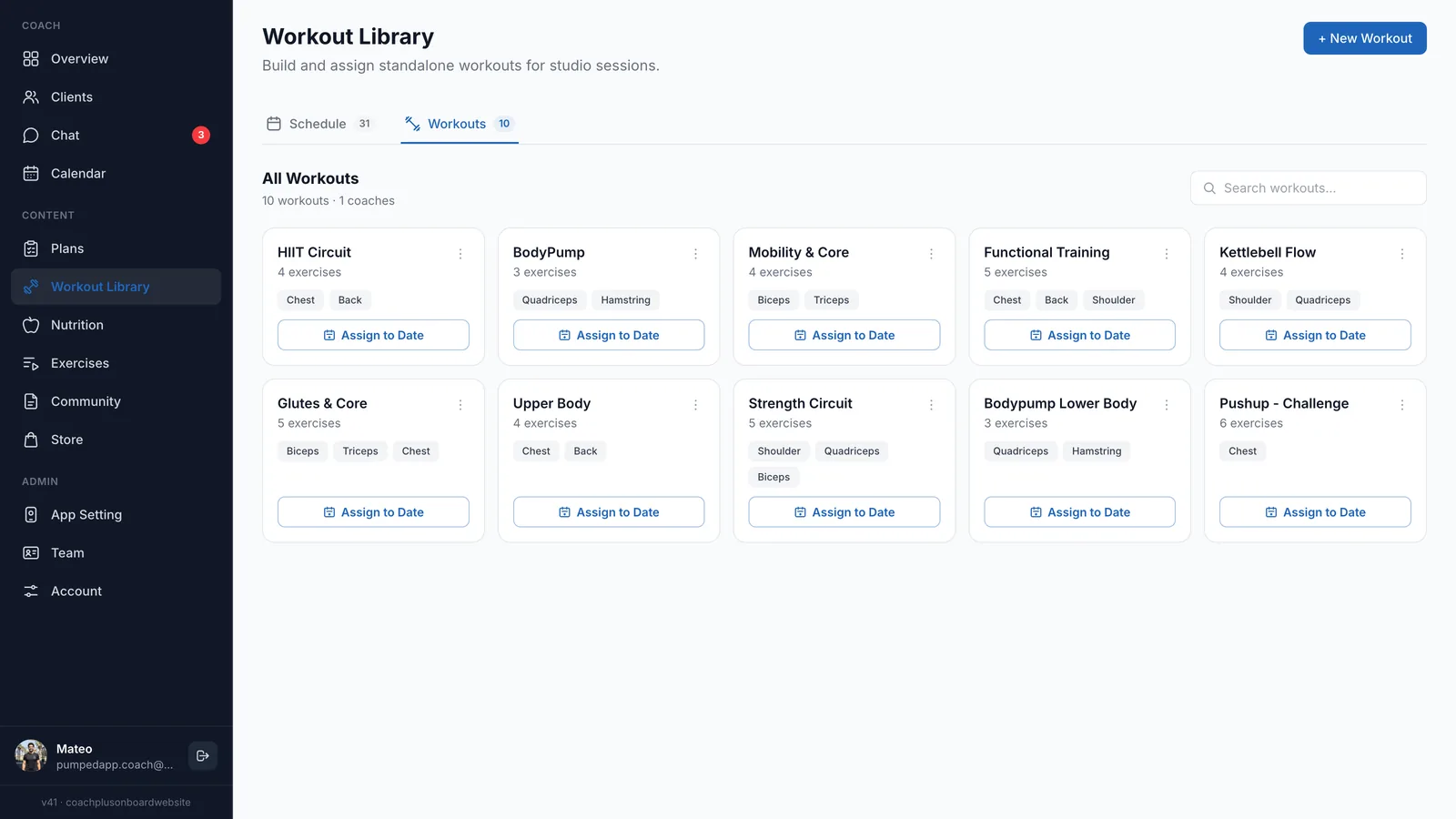
Create a workout
- Click + New Workout at the top of the page.
- The workout editor opens, with Workout Library shown above the title. It's the same editor you use for plan workouts: give the workout a name, add exercises from the Exercise Library and set up the sets.
- Click Save. You go back to the library and the new workout is in the list.
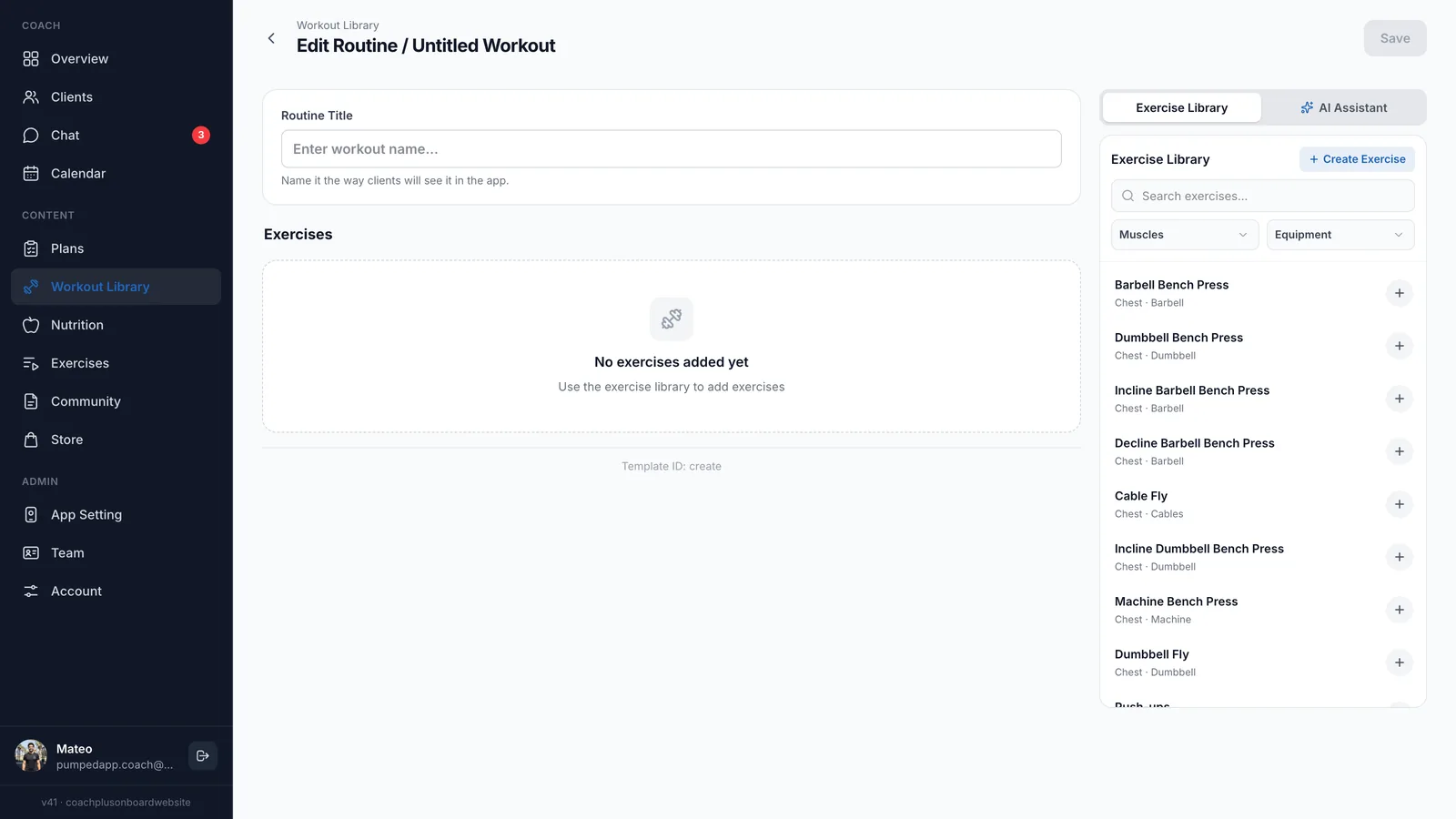
For a full walkthrough of the editor (exercises, sets, coach notes and the AI Assistant), see Creating Workout Plans.
View and edit a workout
Click a workout card to open it. You'll see who created it, each exercise with its coach notes, and a table of sets with Set, Type, KG and Reps.
Click Edit to change the workout in the editor. After you save, you're back on the workout page. Click the back arrow to return to the library.
Send a workout as a challenge
A challenge sends one workout to the clients you pick.
- Open the workout and click Send as challenge. You can also find it on the workout card: as the card's button without studio scheduling, or in the card's ⋮ menu with it.
- Pick clients from the list. Use Search clients… to find someone, or Select all.
- Click the send button, for example Send to 3 clients. You'll see Challenge sent.
Each client gets a notification. The challenge disappears once they complete or dismiss it.
Info
More options on a card
Click the ⋮ button on a workout card:
- Copy Link copies a link to the workout. When a client opens it while signed in to your web app, the workout is added for them, just like a challenge.
- Duplicate workout adds a copy to your library. The name starts as the original name with "(Copy)" at the end, and you can change it before you confirm.
- Delete asks you to confirm, then deletes the workout permanently. It's removed for all clients it was sent to, and from any day it was scheduled on.
The Schedule tab
The Schedule tab is only there if studio scheduling is part of your Coach+ plan. It's a weekly calendar for your studio sessions.
Who sees scheduled sessions
You don't pick clients here. The schedule is one shared week for your whole studio, and every coach on your team can add to it. As the dashboard says, sessions you add show up in the app for your members right away.
Reading the week
- The week runs Sunday to Saturday. Use the arrows to move between weeks, and This week to jump back.
- Today is marked Today. Past days are dimmed and can't be changed.
- Each session shows its time (or No time), its name, and below that the library workout it uses and the coach who scheduled it.
- When more than one coach has sessions in the week, coach buttons appear. Click a coach to see only their sessions, or All coaches to see everything.
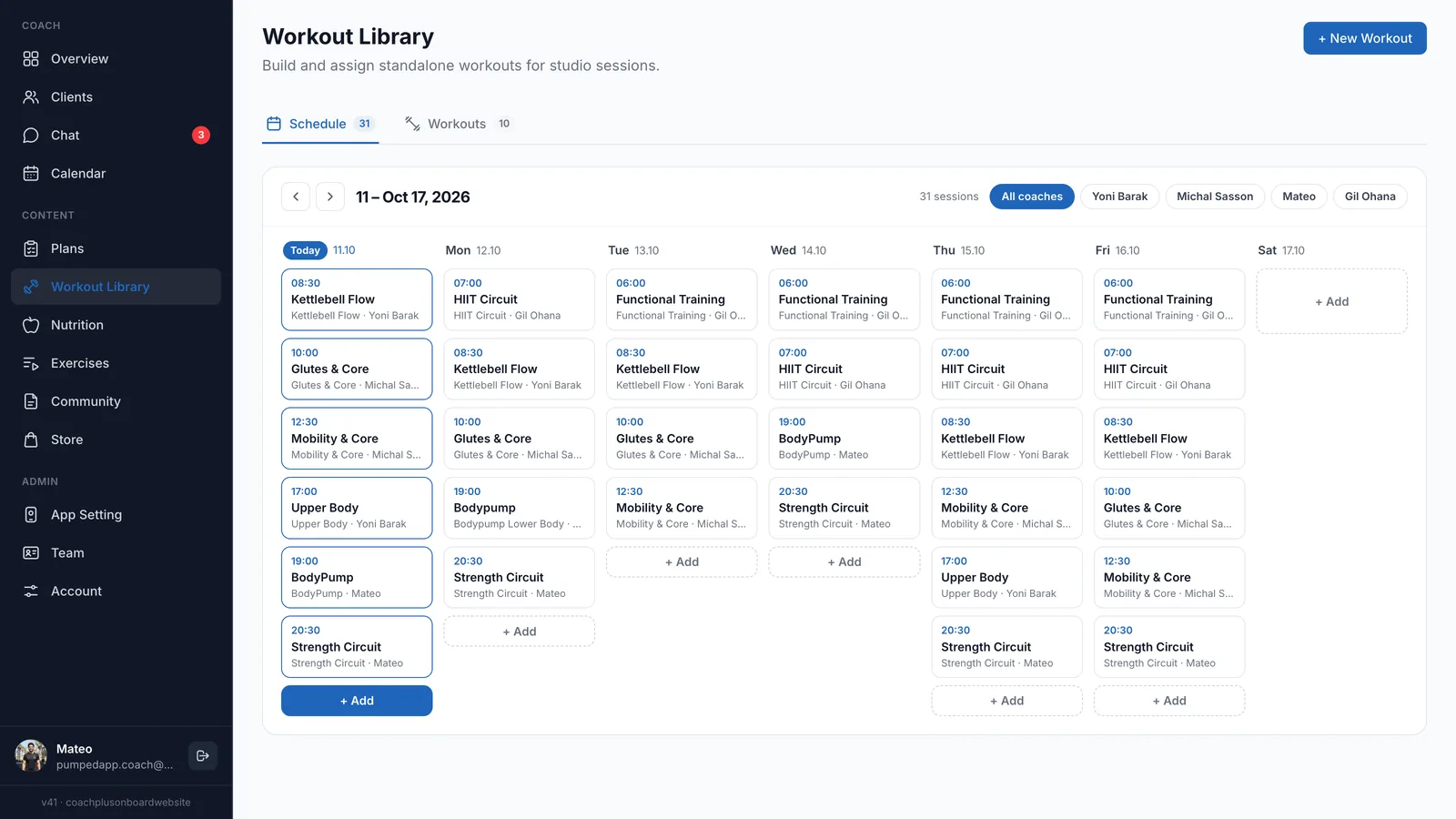
Add a session
- Click + Add under today or any future day.
- Pick a workout. You can search the library by workout name or coach name, and filter with All, Mine or Other Coaches.
- Type a Workout name. This is the name of this session, for example "Morning Strength", and it's required. Names you used recently appear under Recent so you can reuse them in one click.
- Set a Time if you want one. It's optional. Leave it on No time, or click the time and choose the hour and minute.
- Click Add to and the day name.
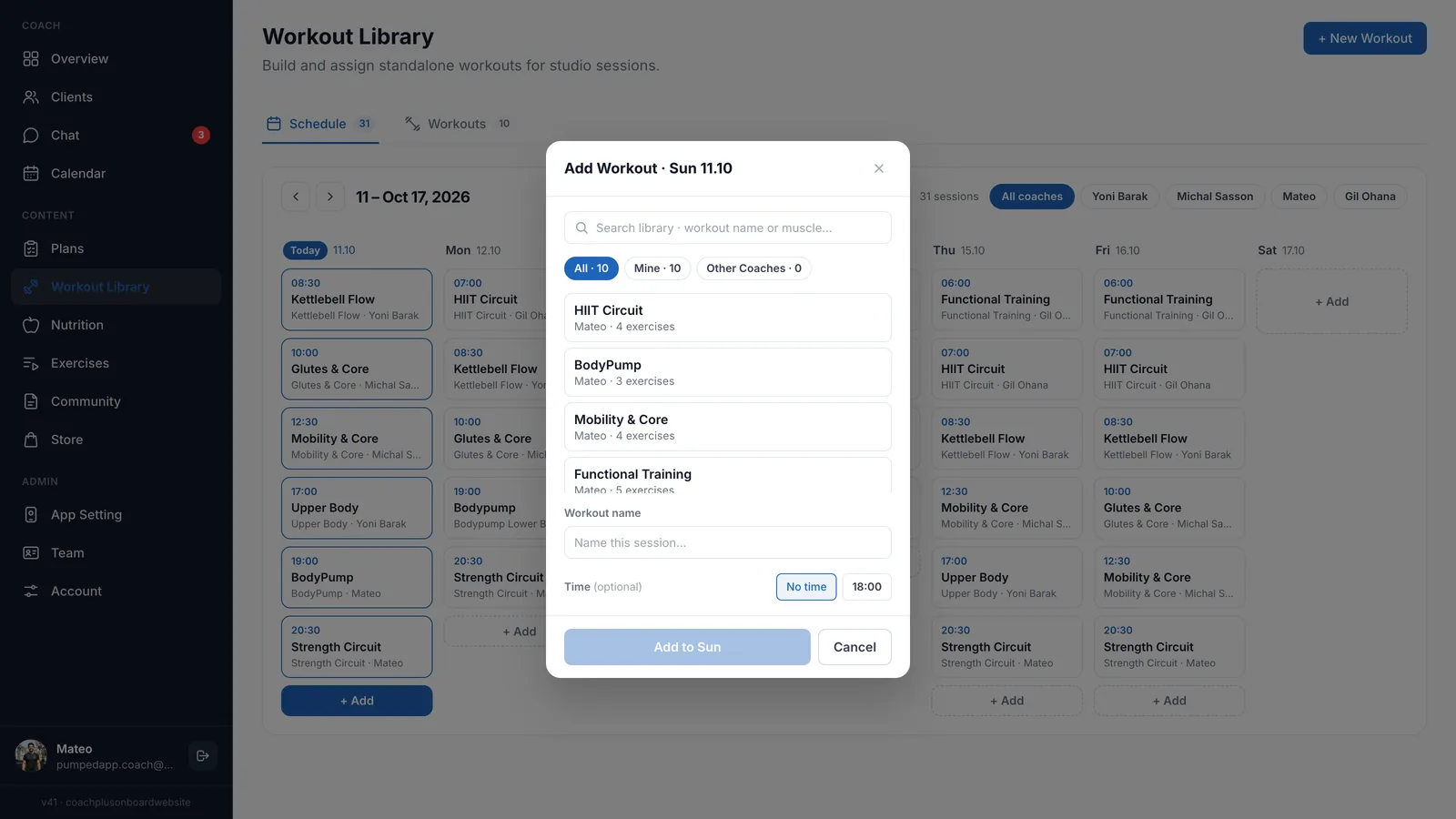
If the week is empty, you'll see This week is still empty with two shortcuts: Add to today and Go to library.
The same workout can be scheduled on as many days as you like.
Schedule from the Workouts tab
With studio scheduling on, each workout card has an Assign to Date button. Pick a day this week, use the arrows for other weeks, or choose any future day under Other date. Then type the Workout name, set an optional time and click Add to and the day.
Change, move or remove a session
Click a session to open its details. Changes save right away.
- Workout name - edit the session name.
- Day - move it to another day in the same week.
- Time - pick a new time, or click No time.
- Remove from day - takes the session off the schedule. The workout stays in your library.
On a computer, you can also drag a session to another day.
On a phone
The Schedule tab shows a strip of days at the top. Tap a day to see its sessions, and tap + Add at the bottom of the screen to add one. Tap a session to change or remove it.
Frequently Asked Questions
I don't see the Schedule tab. Why?
Studio scheduling isn't part of your plan. See Your Plan & Features for how to add it.
Why can't I find a client when sending a challenge?
Only clients you're coaching are listed. Check the name, or start coaching them from the Clients page first.
Can I give a library workout to just one client as part of their program?
For an ongoing program, build a plan and assign it. See Assigning Plans to Clients. For a one-time workout, send it as a challenge to that one client.
Need Help?
Questions about the Workout Library? Email help@coachplusplatform.com.