Community is a shared feed inside your app. Everything you post here shows up in the Community feed your clients see in the app. Their finished workouts appear in the same feed, so you can cheer them on.
Opening Community
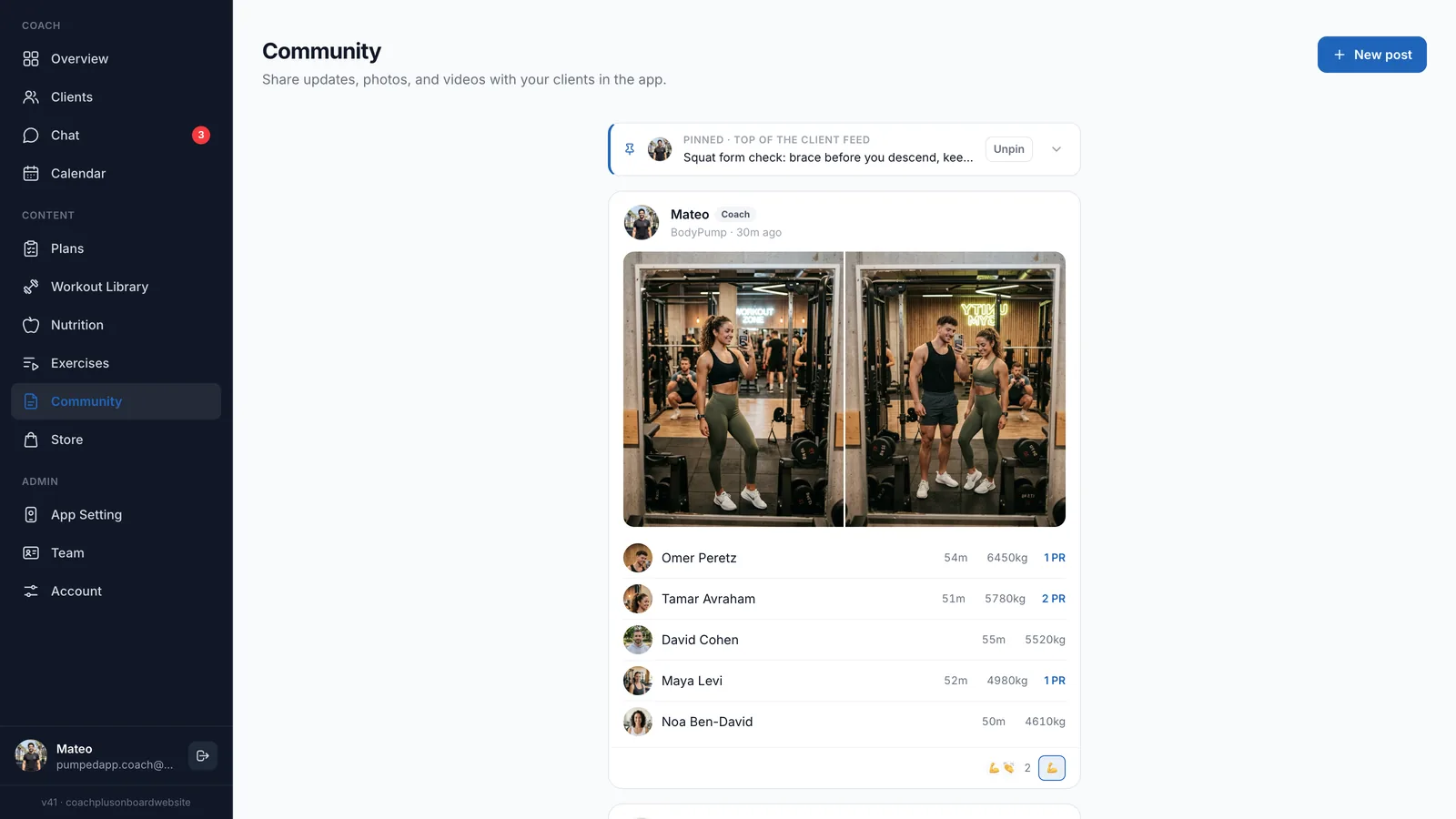
Click Community in the sidebar. The page shows your feed: pinned posts first, then everything else from newest to oldest.
Creating a post
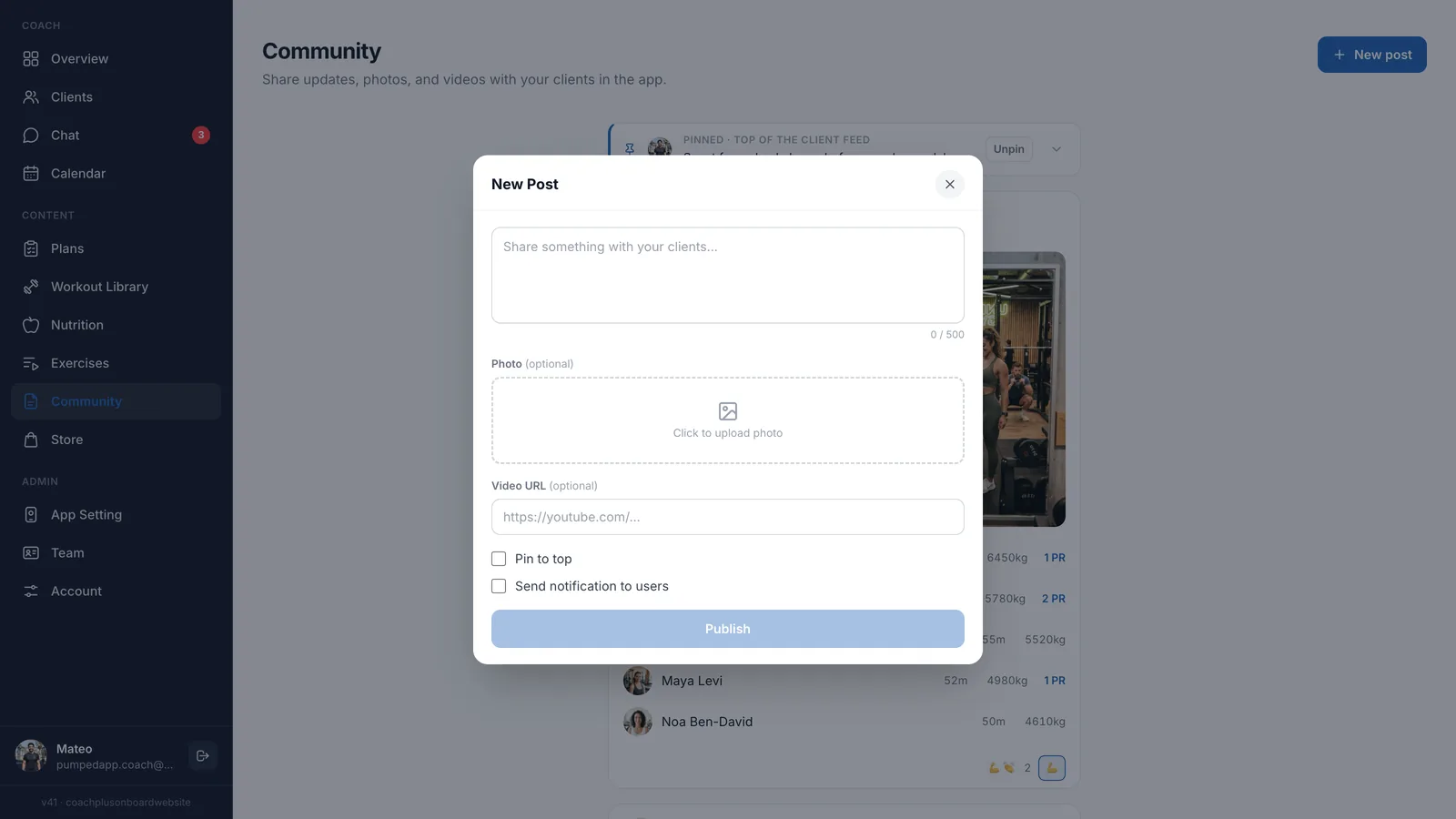
- Click New post at the top of the page. A New Post window opens.
- Write your message in the text box ("Share something with your clients..."). You can use up to 500 characters, and a counter shows how many you've used. Links you paste become clickable.
- Photo (optional) — click Click to upload photo and choose a JPEG, PNG or WebP image up to 10MB. To remove it, click the X on the preview.
- Video URL (optional) — paste a YouTube video or YouTube Shorts link. Other links show the message "Please enter a valid YouTube video or Shorts URL".
- Tick Pin to top if you want the post to stay at the top of the feed.
- Tick Send notification to users if you also want to notify your clients.
- Click Publish. You'll see "Post published."
Tip
How posts look
Each post shows your name and photo, the date, your text, the photo if you added one, and the video. A video appears as its YouTube thumbnail with a play button. Clicking it opens the video on YouTube in a new tab.
Pinning posts
Pinned posts stay at the top of your clients' feed. You can pin a post when you create it, or later with the Pin button on any post. You can pin more than one.
On the Community page, pinned posts are folded into a slim bar at the top labeled "Pinned · top of the client feed", with the first line of the post.
- Click the bar or its arrow to open the full post. It shows a Pinned tag.
- Click the Pinned tag to fold the post back into the bar.
- Click Unpin to remove the pin. The post moves back into the feed by date.
Editing and deleting posts
Every post has Pin (or Unpin), Edit and Delete buttons at the top right.
- Edit opens the Edit Post window. You can change the text, replace or remove the photo, change the video link, and pin or unpin. Click Save changes when you're done. The notification option isn't available when editing.
- Delete asks "Delete this post?". Click Delete to confirm. The post disappears from every client's feed, and this can't be undone.
Reactions and likes
You can react to any post or workout card with 🔥, 💪 or 👏. Click the + 😀 button at the bottom of the card and choose one.
- You can have one reaction per post. Choosing a different one replaces it.
- To remove your reaction, open the picker and click the same emoji again.
- Next to the button, you'll see the most-used reactions and the total number of reactions.
- If clients liked a post, the number of likes appears at the bottom left, for example "3 likes".
Your clients' workouts in the feed
When a client finishes a workout in the app, it's posted to the feed as a workout card. These cards appear on your Community page with the client's name and how long ago the card was posted. A workout card shows:
- The workout name and the client's caption, if they wrote one.
- How long the workout took, the total weight lifted (or the distance), the number of exercises and the RPE, if the client added it.
- The client's photo if they added one. Otherwise their new personal records (PRs), or a list of the exercises they did.
For group sessions, one card shows everyone who took part. It's marked Coach and ranks the participants by the weight they lifted, with each person's time and PRs.
You can react to workout cards, but you can't edit, pin or delete them.
Info
Community and your plan
Community is included depending on your plan. If it isn't part of your plan, Community stays in the sidebar but is dimmed with a lock icon. Opening it shows "Community Not Available" with a Contact Support button that opens an email to our support team. See Your Plan & Features for more.
Frequently Asked Questions
Who sees my posts?
All your clients, in the Community feed in the app.
Can I post only a photo, without text?
No. Every post needs some text.
Can I upload a video file?
No. Videos are added as a YouTube or YouTube Shorts link.
Can I remove a client's workout card?
No. Workout cards can't be edited or deleted from the dashboard.
What's Next?
- Chatting with Clients - Message one client privately
- Managing Client Profiles - Follow each client's progress
- Your Plan & Features - What your plan includes