Chat lets you send private messages to the clients you coach. They get your messages in the app and reply from there. Their replies show up in your dashboard right away, without refreshing the page.
Opening Chat
Click Chat in the sidebar. The page is called Chats. Under the title you'll see how many conversations you have and how many messages are unread, or "all caught up" when you've read everything.
On a computer, your conversations are listed on the left and the open conversation is on the right. The newest conversation opens by itself. On a phone, you see the list first. Tap a conversation to open it, and use the back arrow to return to the list.
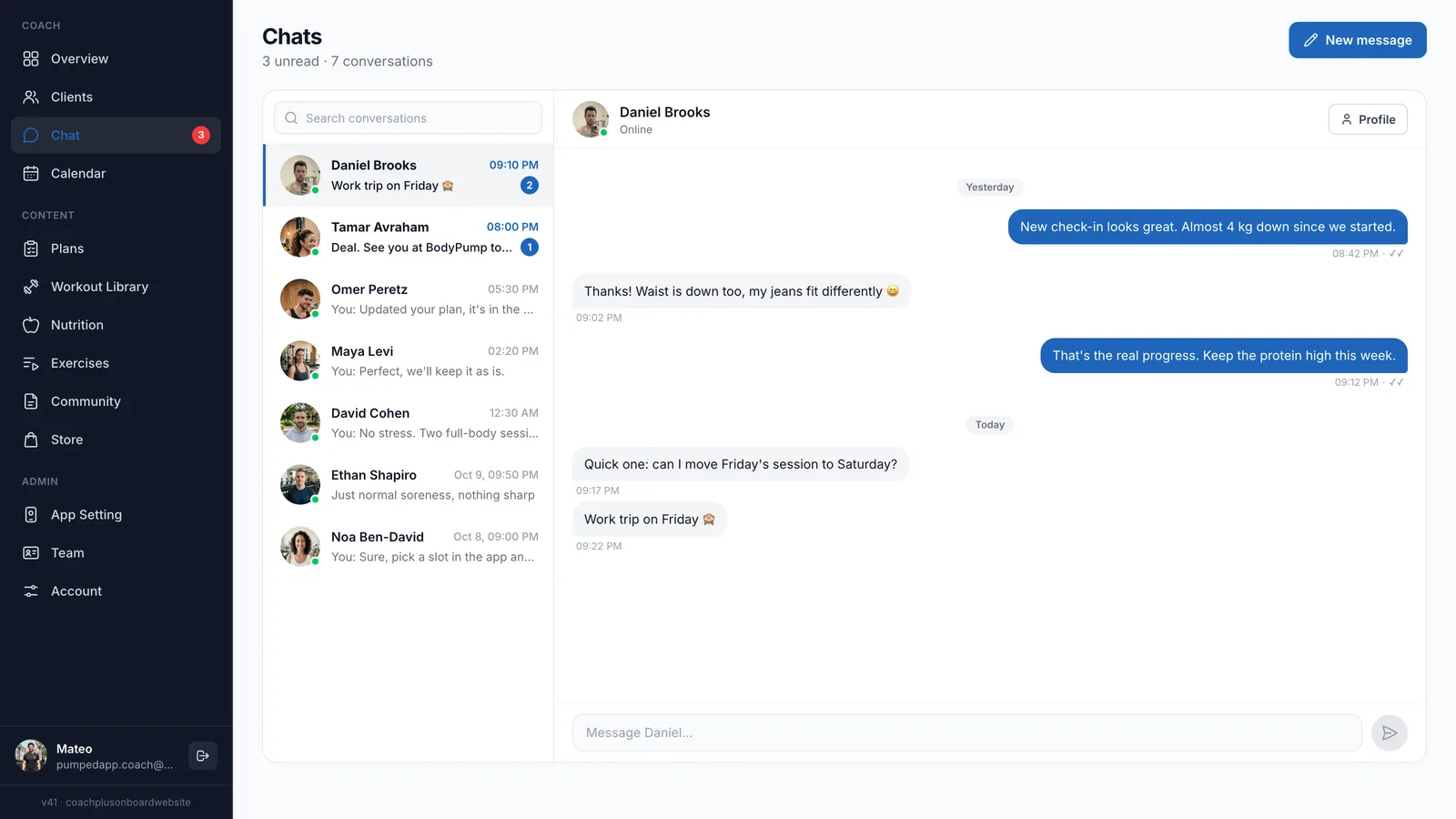
Your inbox
The newest conversations are at the top. Each row shows:
- The client's photo (or the first letter of their name) and their name.
- A green dot on the photo when the client is signed in to your app.
- The last message. If you sent it, it starts with "You:".
- When the last message was sent.
- A round badge with the number of unread messages. Rows with unread messages also have a bold name.
To find someone, type their name in Search conversations at the top of the list.
Starting a new conversation
- Click New message at the top of the page.
- A window opens with your clients. Only clients you're coaching are listed ("Coached clients only"). Leads don't appear here.
- Type in Search clients... to find someone, then click their name. If you already have a conversation with them, you'll see Open conversation under their name.
- The conversation opens and the cursor is already in the message box, so you can start typing.
When your inbox is empty, you can also start from the Message a client or New message buttons in the empty inbox.
Sending messages
Type in the box at the bottom of the conversation and press Enter, or click the send arrow. To start a new line without sending, press Shift + Enter.
- Messages are text only. You can't attach photos or files from the dashboard.
- Each message can be up to 144 characters. A counter appears near the limit and turns red when you reach it.
- Messages are grouped by day, with a date label between days.
Message status
Under each message you send, next to the time, you'll see its status:
- Sending… — the message is on its way.
- ✓ — sent.
- ✓✓ — the client has read it.
- Failed to send — in red. Check your connection and send the message again.
Info
Unread messages
When clients send you messages you haven't read, a red badge with the number appears next to Chat in the sidebar. You can see it from any page in the dashboard. Opening a conversation marks that client's messages as read, and the badge goes down.
Other ways to open a conversation
- From a client's profile: open the client in Clients and click Message at the top of their profile. The button appears for clients you're coaching.
- From the calendar: click a meeting and then Message followed by the client's name.
It works the other way too: click Profile at the top of a conversation to open that client's profile.
Chat and your plan
Chat is included depending on your plan. If it isn't part of your plan, Chat doesn't appear in the sidebar at all. See Your Plan & Features to learn how to get it.
Frequently Asked Questions
Why can't I find a client in New message?
Only clients you're coaching are listed. If the person is still a lead, start coaching them first. See Adding Your First Client.
Can I send a photo?
No. Messages from the dashboard are text only.
How do I know a client read my message?
Two check marks (✓✓) under your message mean the client has read it.
What's Next?
- Managing Client Profiles - Everything on a client's profile
- Community Feed - Post updates for all your clients at once
- Calendar & Meetings - Let clients book meetings with you