Setting up Coach+ has two parts. First you create your app in a short sign-up flow. Then your dashboard opens, and the Quick start checklist on Overview walks you through the last few things to check before you invite clients.
Part 1: Create your app
Start from the dashboard sign-in page: under the sign-in form, click Sign up. You'll see a welcome screen. Click Get Started.
Step 1: Colors
Pick a color for your app. Buttons, headers and highlights in your app use it. Click one of the preset colors, or click Custom to choose your own.
- Your app has a light color and a dark color (for dark mode). You can type a hex code into each one.
- A small label shows whether your color is Readable on white, with its contrast ratio. Green means it passes.
- The phone preview shows a workout screen in your colors. Switch between Light and Dark to check both.
Step 2: Add your look
Both items on this step are optional.
- App icon — click Upload logo. Use a square PNG, JPG or WebP, up to 10MB. You can crop it to a square before it's used. Without a logo, your icon is the first letter of your app name on your color.
- Splash screen — click Upload image. It shows for a second while the app opens. Use a portrait image (1170×2532), up to 10MB. A photo of you or your gym works well.
If you don't upload anything, the button says Skip, and we use the letter icon and a default launch screen.
Step 3: Name & link
- App Name (required) — shown under your app icon and on the login screen.
- Username (required) — we suggest one from your app name. It becomes your app's link, and it's what clients enter in the app to join you. Use 6–32 lowercase English letters, with single hyphens between words. No numbers. Click Check availability to make sure no one else has it.
- Exercise & Plan Language (required) — English or Hebrew. This sets the default language for workouts, training plans and the main labels your clients see in the app.
Tip
Step 4: Preview
Flip through the Home, Workout and Login screens to see your app the way clients will. Click Back to change anything. When it looks right, click Finish setup.
Sign in and add your details
- If you aren't signed in yet, a Save your app window opens. Click Continue with Google. Nothing is saved until you sign in.
- In Final details, fill in your Email Address, Full Name and Phone Number. Your email and name are filled in from your Google account. A Coupon code is optional.
- Tick the three confirmations: that you agree to the Terms of Use and Privacy Policy, that you're certified and insured to coach, and that your details are accurate.
- Click Create my app.
You'll see a list of setup steps as your app is created. Keep the window open. Your dashboard opens on its own when it's ready.
Part 2: The Quick start checklist
When your dashboard opens, you land on Overview. At the top is the Quick start checklist: four short steps to get your app ready for clients.
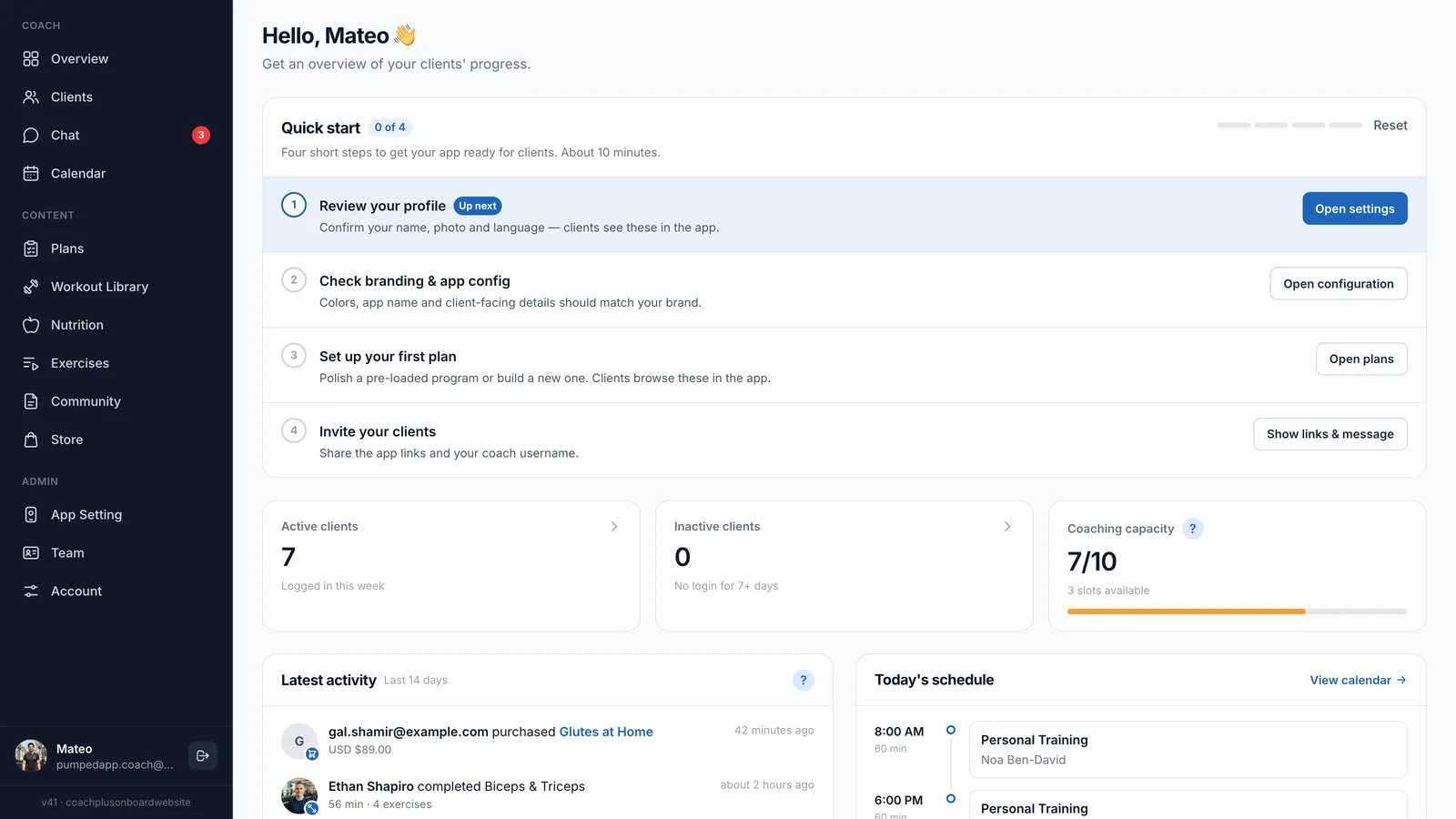
The checklist only appears for the person who created the account in the sign-up flow. Other coaches on your team don't see it, and accounts that were set up for you by our team don't have it.
How it works
- A counter next to the title shows how many steps are done, for example "1 of 4".
- The next step to do is highlighted and marked Up next. You can do the steps in any order.
- A step gets a check mark as soon as you click its button.
- When all four steps are done, the checklist disappears.
- Reset clears all the check marks so you can start over.
Info
1. Review your profile
Click Open settings to go to Account. Check your name and photo there — clients see them on your profile in the app. See Account Settings.
2. Check branding & app config
Click Open configuration to go to App Setting. Make sure the colors, app name and client-facing details match your brand. See App Configuration.
3. Set up your first plan
Click Open plans to go to Plans. Polish a program that's already there or build a new one. Clients browse your plans in the app. See Creating Workout Plans.
4. Invite your clients
Click Show links & message. A panel opens with a ready-to-send message. It has the app links for Apple (App Store) and Android (Google Play), plus your coach username.
- Copy message — copies it so you can paste it anywhere: WhatsApp, stories, your Instagram bio or your mailing list.
- Share via WhatsApp — opens WhatsApp with the message ready.
- Coach username — click Copy to copy just your username.
This step doesn't tick itself. When you've shared the message, click Mark as done. Click Close to hide the panel without ticking it.
When a client finishes signing up in the app, they appear in the Leads tab on your Clients page.
Clients waiting for approval
Once people sign up with your username, Overview may show a card like "1 client is waiting for approval". It appears while you have leads but aren't coaching anyone yet. Click Review leads to open them. See Adding Your First Client.
Frequently Asked Questions
I don't see the Quick start checklist. Why?
Either all four steps are already done, or you aren't the person who created the account. If you used the checklist in a different browser, your progress there doesn't carry over.
I ticked a step by mistake. Can I undo it?
Click Reset on the checklist. This clears all four check marks.
Can I skip the logo and splash screen?
Yes. Click Skip on the Add your look step. You can add them later in App Setting.
What's Next?
- Dashboard Overview — find your way around the dashboard
- Adding Your First Client — invite clients and start coaching
- Your Plan & Features — what your plan includes
Need Help?
Stuck during setup? Email help@coachplusplatform.com.